Budgets Summary report
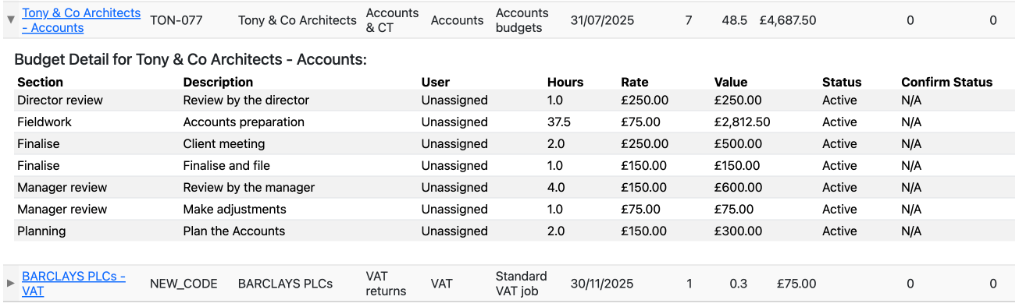
The Budgets Summary report lists the budget on every job, so you can see budgeted hours and value across the practice and check how far each job's budget has been confirmed and approved.
Run the report
- Go to Workflows > Advanced Reports and choose Budgets Summary (in the Jobs category).
- Optionally, choose a System and Sub-system.
- Click Create Report.
The report is available to super users and to anyone in any of the four BUDGETS permission lists (see Switch on budgets and give staff permission).
Columns
| Column | Meaning |
|---|---|
| Job | The client and sub-system. Click it to open the job. |
| Client Code / Client | The client. |
| System / Sub-system | The workflow system and sub-system of the budget. |
| Template | The budget template the job's budget was copied from. |
| Job Date | The job's date, for example the year end. |
| Lines | How many budget lines the job has. |
| Hours / Value | The job's total budgeted hours and value. |
| Unconfirmed / Confirmed / Approved | How many of the job's lines are at each confirmation status. See View and edit a job's budget. |
Click the arrow at the start of a row to see the Budget Detail for that job: each line's Section, Description, User, Hours, Rate, Value, Status and Confirm Status.
Use the search box to find a client or job, and the PDF, CSV, Copy and Print buttons to export the list.