How to use Claude Code with Glide
This guide shows you how to connect your Glide system to Claude Code, the command-line version of Claude. Once it's connected, you can ask Claude questions about your clients, jobs and deadlines in plain English, and ask it to update things in Glide for you.
Claude Code connects to Glide through an MCP server. Follow the steps below to connect your Glide user account to your Claude account. This feature does not allow other Claude users to access your Glide data, nor does it allow other users of your Glide system to access your Claude account. It takes about five minutes, and you only need to do it once.
Using this feature will share relevant data on your Glide system with Claude. For example, if you ask Claude to summarise a client on your Glide system, the relevant data related to that client is sent to Claude to allow it to respond to your question.
In this guide
- Before you start
- Add Glide to Claude Code
- Connect your Glide account
- Using Glide in Claude Code
- If something goes wrong
Before you start
You will need:
- A paid Claude plan or a Claude Console account. Claude Code isn't included in the free plan.
- Claude Code installed on your computer (see below).
- Access to your Glide account in your web browser.
- The Glide MCP server switched on for your practice (see below).
Switch on the MCP server in Glide
This only needs to be done once for the whole practice, and it must be done by a Glide super user. If you're not a super user, ask the person who is to do this for you.
In Glide, go to System Configuration and find the AI Assist section. Next to MCP Server, select Yes, then save.

Set MCP Server to Yes.
Add Glide to Claude Code
1. Find your Glide MCP server address
In Glide, open your profile page and go to the MCP Server – AI Agents tab. Make a note of the server URL shown there.
For most users this will be:
https://gapp.glideworkpm.com/mcp
2. Add the Glide server
In your terminal, copy and paste this command, then press Enter. If your server URL from step 1 is different, change the address at the end to match.
claude mcp add --transport http --scope user glide https://gapp.glideworkpm.com/mcp
Claude Code will confirm that the glide server has been added.

--scope usermakes Glide available whichever folder you start Claude Code in. Without it, Glide is only available in the folder you were in when you ran the command.
Connect your Glide account
3. Start Claude Code and open the MCP menu
Type claude and press Enter to start Claude Code. Then type /mcp and press Enter.
You'll see a list of your MCP servers. glide will show that it needs authentication. Use the arrow keys to select glide, then press Enter.
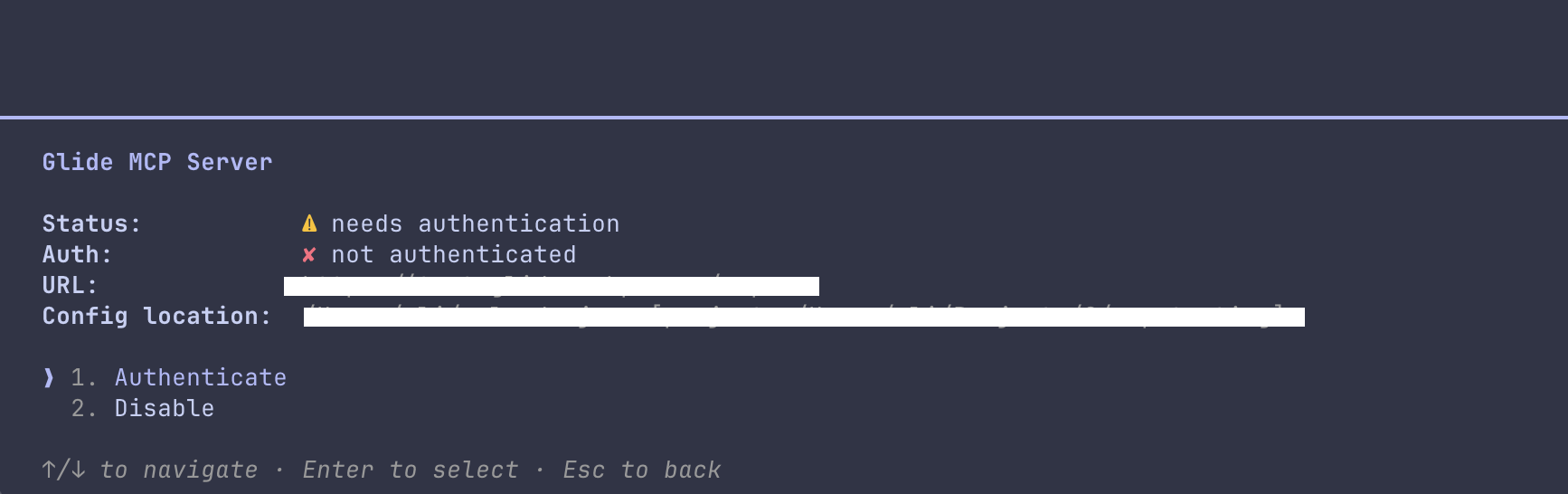
4. Choose “Authenticate”
Select Authenticate and press Enter. A Glide page will open in your browser.
If your browser doesn't open, Claude Code shows a link in the terminal. Copy it and paste it into your browser.
5. Check your account and choose what Claude Code can use
Glide shows the Connect Claude Code to Glide page. If Glide asks you to log in, use your normal Glide username and password.
Next, choose which parts of Glide Claude Code can use. All areas is ticked to start with. For each area you can allow:
- Read: Claude Code can look at this information.
- Update: Claude Code can make changes to it.
Untick anything you don't want Claude Code to access.
6. Click “Allow access”
Scroll to the bottom of the page and click Allow access.
Claude Code can only do what you are allowed to do in Glide. Everything it does is recorded in the Glide activity logs under your name, just as if you had done it yourself.
7. Go back to the terminal
Your browser will say that authentication was successful. You can close that tab and go back to your terminal, where Claude Code will confirm that Glide is connected.
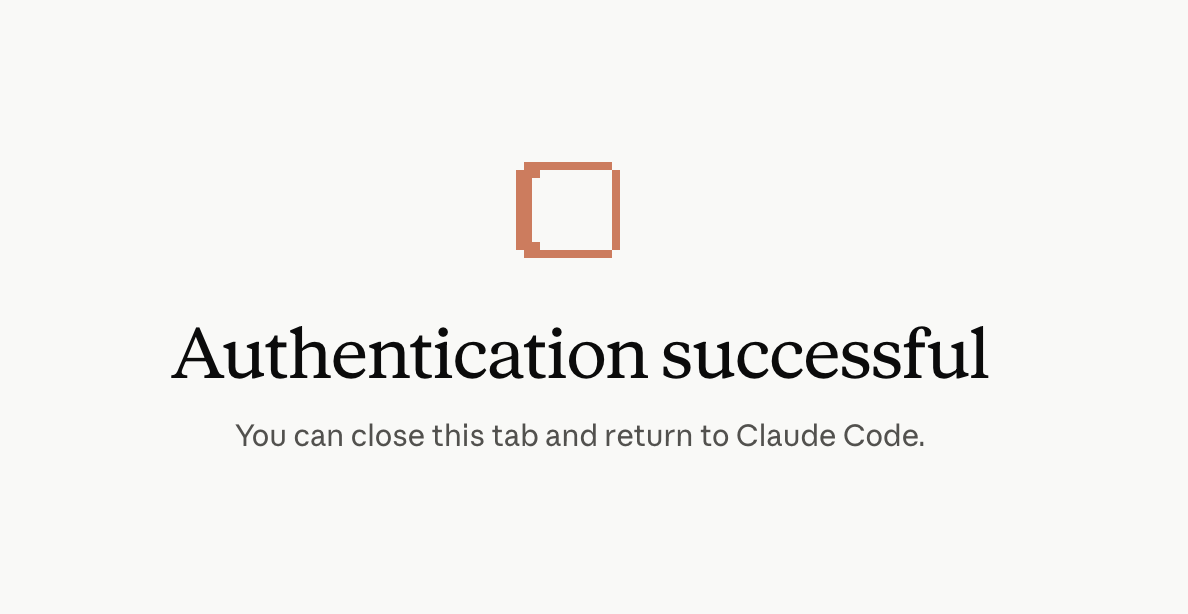
Press Esc to close the MCP menu.
Using Glide in Claude Code
You're all set. Whenever you want to use Glide, open your terminal, type claude and press Enter, then ask about your practice in plain English.
Ask a question
Mention Glide in your message so Claude knows where to look. For example:
Using Glide, summarise my accountancy practice
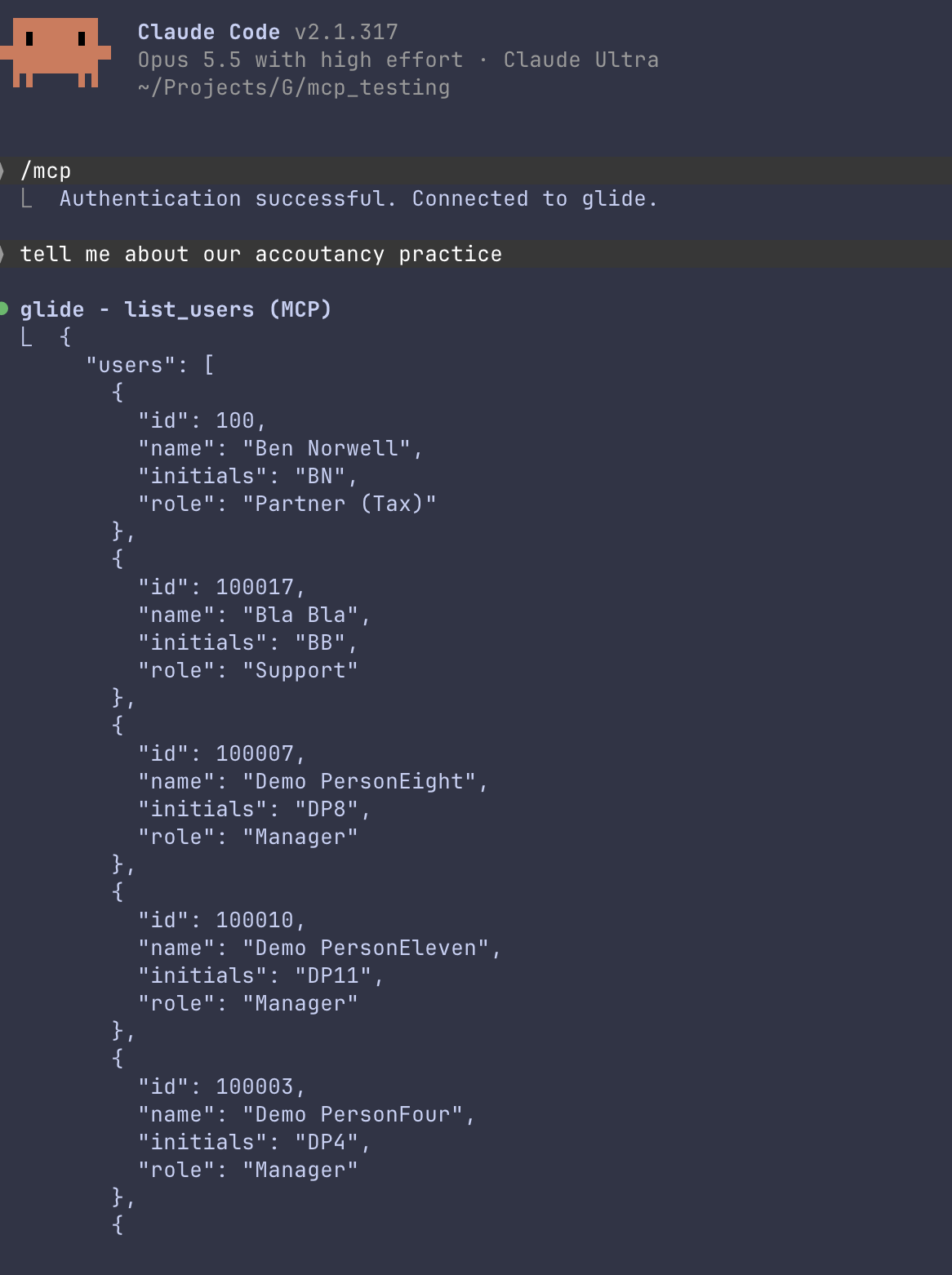
Claude looks up the answer in Glide. This can take a minute or two.
Note: Unlike some other tools, Claude Code will show you its thinking, so you may see output like in the screenshot below as data arrives from Glide and is considered for inclusion in the response that Claude gives.
Allow Claude Code to use Glide
Before Claude Code uses Glide, it asks for your permission. This happens for looking things up as well as making changes. You can choose:
- Yes: allow it this one time.
- Yes, and don't ask again: allow this kind of action from now on without asking you first.
- No: don't do it, and tell Claude what to do differently.
Use the arrow keys to choose an option and press Enter.
We recommend choosing Yes, and don't ask again for actions that only look things up, and plain Yes for actions that change things in Glide, so you always check a change before it's made.
Ask follow-up questions
Keep chatting as normal. You can ask about a particular client:
Tell me about the EVS Europe client
Or ask about a particular job:
Where are we at with the confirmation statement for this client?
Claude will often tell you what can happen next and suggest what to do.
Ask Claude Code to make a change
You can also ask Claude Code to update Glide, for example to move a job to the next stage. Claude will ask for your permission first, as described above. Once the change is made, Claude confirms what it did.
If something goes wrong
“The Glide MCP server is switched off for this Glide system”
If you see this message in your browser after choosing Authenticate, the MCP server hasn't been switched on for your practice yet.
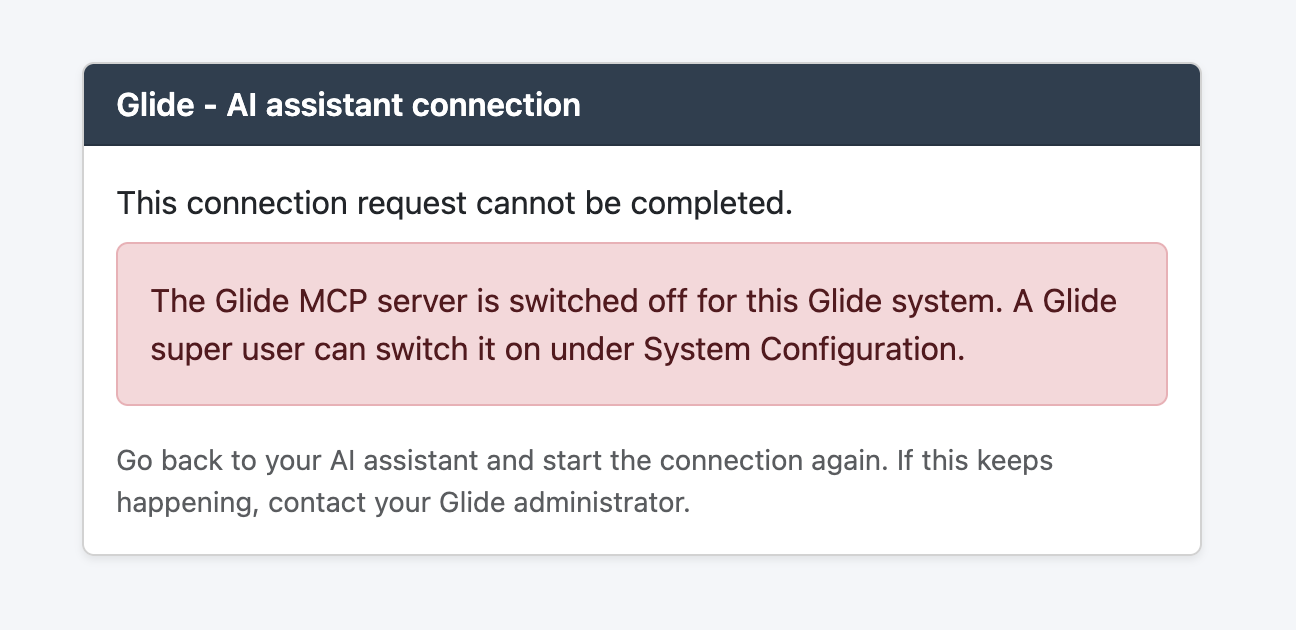
To fix it:
- Ask a Glide super user to switch it on (see Before you start).
- In Claude Code, type
/mcp, select glide and choose Authenticate again. - Carry on from step 5.
Glide isn't listed when I type /mcp
Type /exit to close Claude Code, then run the command in step 2 again, making sure it includes --scope user . Start Claude Code again with claude .
To check which servers Claude Code knows about, run this in your terminal (outside Claude Code):
claude mcp list
Disconnecting Claude Code from Glide
You can disconnect Claude Code from Glide at any time. In Glide, open your profile page and go to the MCP Server – AI Agents tab.
You can also do it from Claude Code: type /mcp , select glide and choose Clear authentication. To remove Glide from Claude Code completely, run this in your terminal:
claude mcp remove glide